Work the inbox: filters, assigning, snoozing and closing
Every conversation from every channel lands in one inbox. Filter it down to what needs you, open a conversation, and assign, snooze or close it from the buttons at the top.
Find what needs you
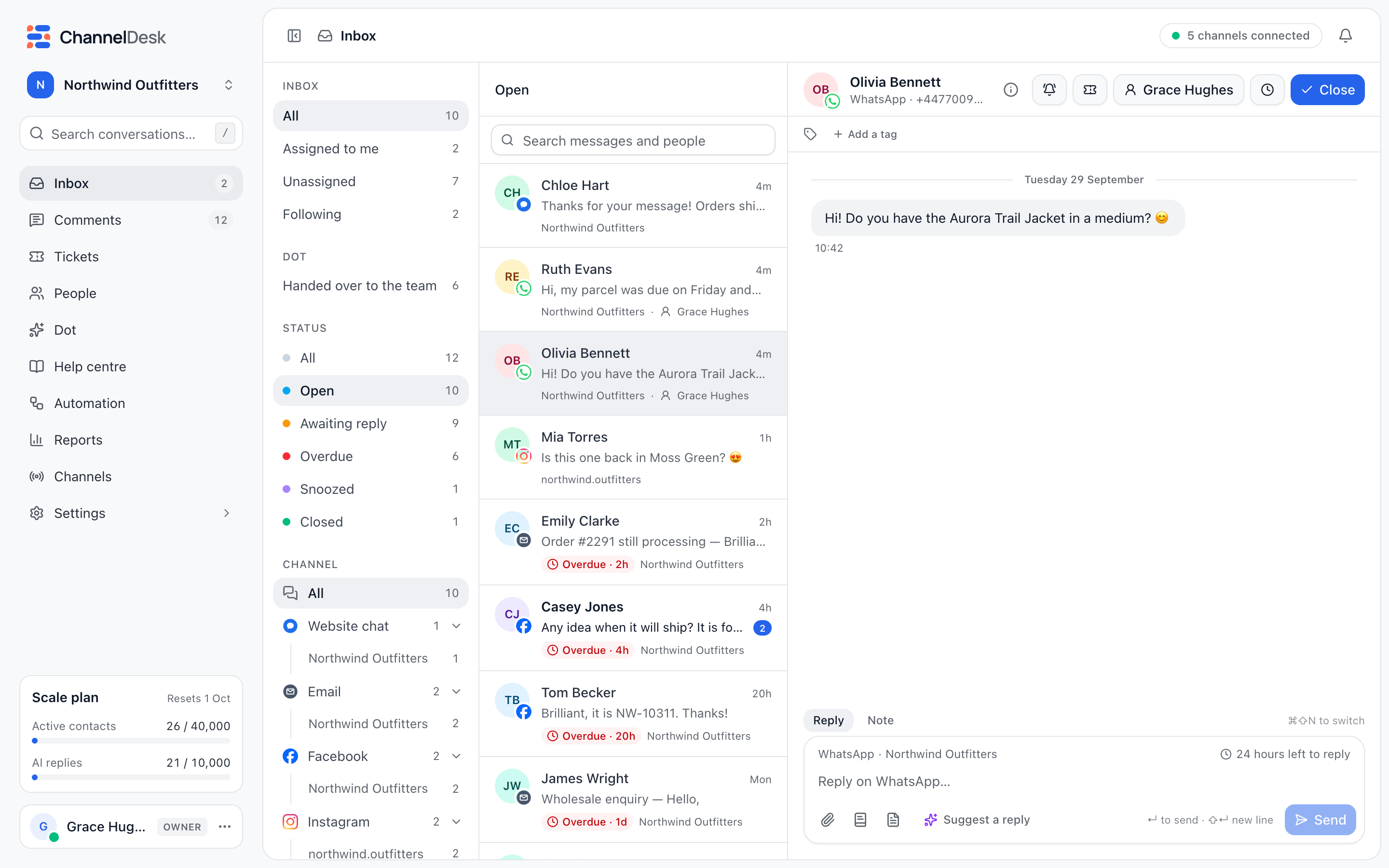
The filters down the left of the inbox are in four groups:
Inbox: All, Assigned to me, Unassigned and Following, then each of your teammates.
Dot: Handed over to the team, for conversations Dot passed to a person.
Status: All, Open, Awaiting reply, Overdue, Snoozed and Closed.
Channel: one kind of channel, like WhatsApp, or a single channel.
On a smaller screen the statuses sit above the list, and the people button beside them chooses whose conversations you see. Press / to search what was said, a subject, or a customer’s name, handle or email.
Handle a conversation
Open the conversation from the list.
Choose Assign (or the name of whoever has it) and pick a teammate. Nobody puts it back in Unassigned.
Write your reply and send it. In an email reply, Enter starts a new line and Cmd+Enter (Ctrl+Enter on Windows) sends.
Choose Snooze to put it away until later: In 3 hours, Tomorrow morning or Next week.
Choose Close when it’s done. Reopen brings it back.
A snoozed or closed conversation comes back by itself when the customer writes again.
Reply targets and Overdue
Reply targets say how soon customers should hear back. Set them in Settings → Workspace, under Reply targets: DMs and email start at two hours, website chat at five minutes. A conversation waiting longer shows as Overdue in the list, with how long it has waited (for example Overdue · 3h), and under the Overdue filter.
Did this answer your question?