Saved replies and keyboard shortcuts
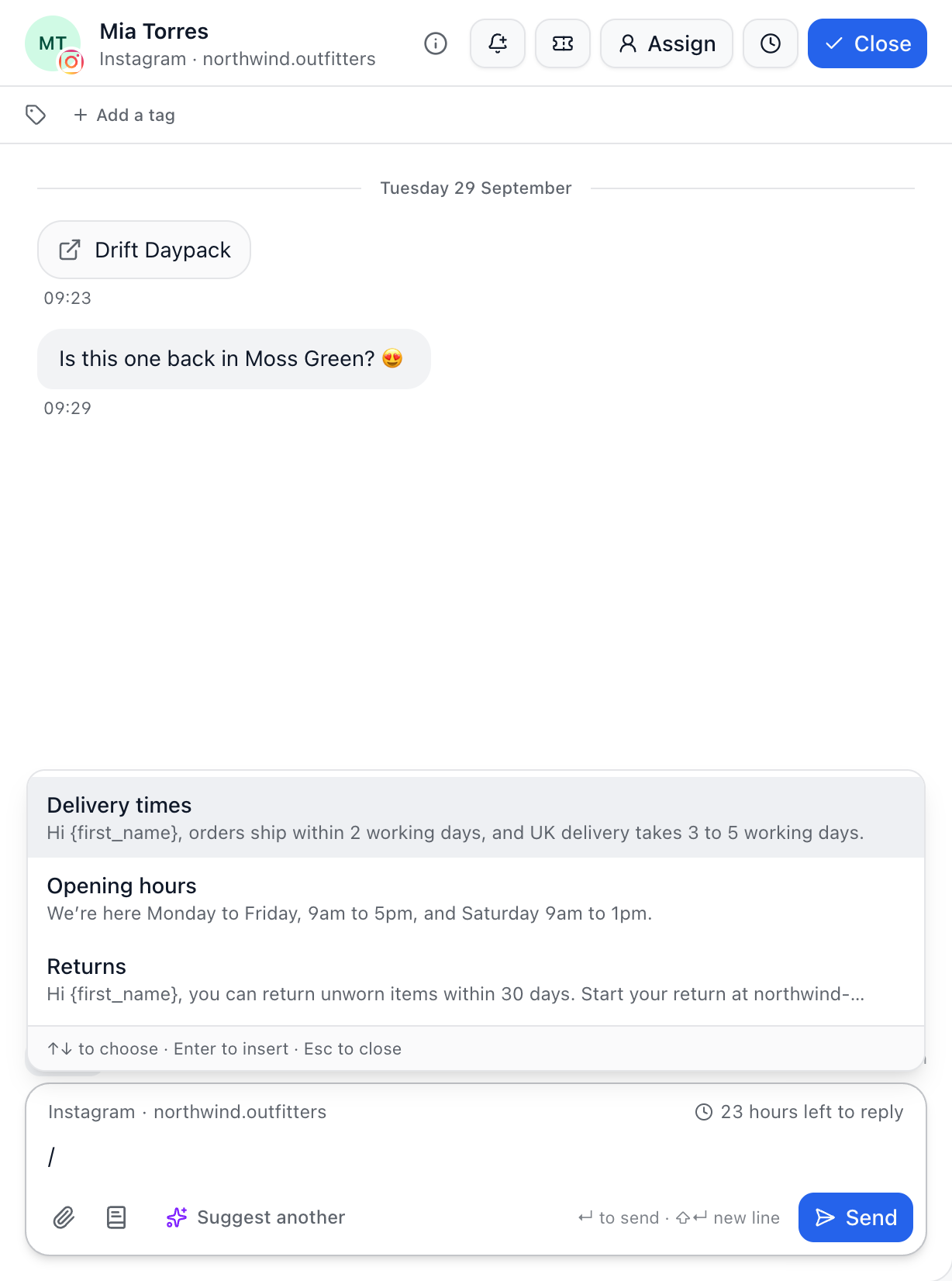
Saved replies are answers your team sends often, written once. Type / in a reply, or use the Saved replies button, to insert one, then change anything you like before you send it.
Add a saved reply
Go to Settings → Saved replies, and choose New saved reply.
Give it a title your team will recognise, like Delivery times, and write the reply.
Add fill-ins where they help, then choose Add saved reply.
You can also save one while you write: open the saved replies menu in the reply box and choose Save what you’ve written as a reply.
Fill-ins
{first_name} or {name}: the customer’s first name, or their whole name.
{agent_name}: the name of whoever sends it.
{brand}: your business’s name.
Any customer field, like {person.membership_number}.
A fill-in with nothing to fill is left out with the comma before it, so “Thanks, {first_name}!” becomes “Thanks!” when you don’t know their name.
Insert one
In the reply box, type / at the start of a word, or choose the Saved replies button. In an email reply, use the button. Pick one with the arrow keys and Enter, or click it. The ones your team uses most come first. Everyone who can read the inbox can use saved replies; anyone who can reply can add, change or remove them.
Keyboard shortcuts
In the inbox, press ? to see them all. They never fire while you’re typing in a box.
j and k: next and previous conversation
r: reply
/: search
e: close, or reopen
a: assign it to me
z: snooze for an hour
t: create a ticket
Esc: leave the reply box or the search
Cmd+Shift+N (Ctrl+Shift+N on Windows): switch between Reply and Note
On the Tickets page, c starts a new ticket, j and k move between tickets, Enter opens one and e resolves it.
Did this answer your question?