Add a chat to your website
Website chat puts a chat bubble on your site. Visitors’ messages land in your inbox, and Dot can answer the easy ones. It’s on every plan.
Add it
Go to Channels and find Add chat to your website.
Enter the name visitors see and your website, such as yourbusiness.com, then select Add website chat.
Make it yours: colour, position, greeting and the line under it. The preview changes as you go. Select Save.
Copy the snippet from the chat’s card and paste it before </body> on every page of your site.
Open your site. Once the chat has loaded there, its card in Channels says Live on, with your site’s address.
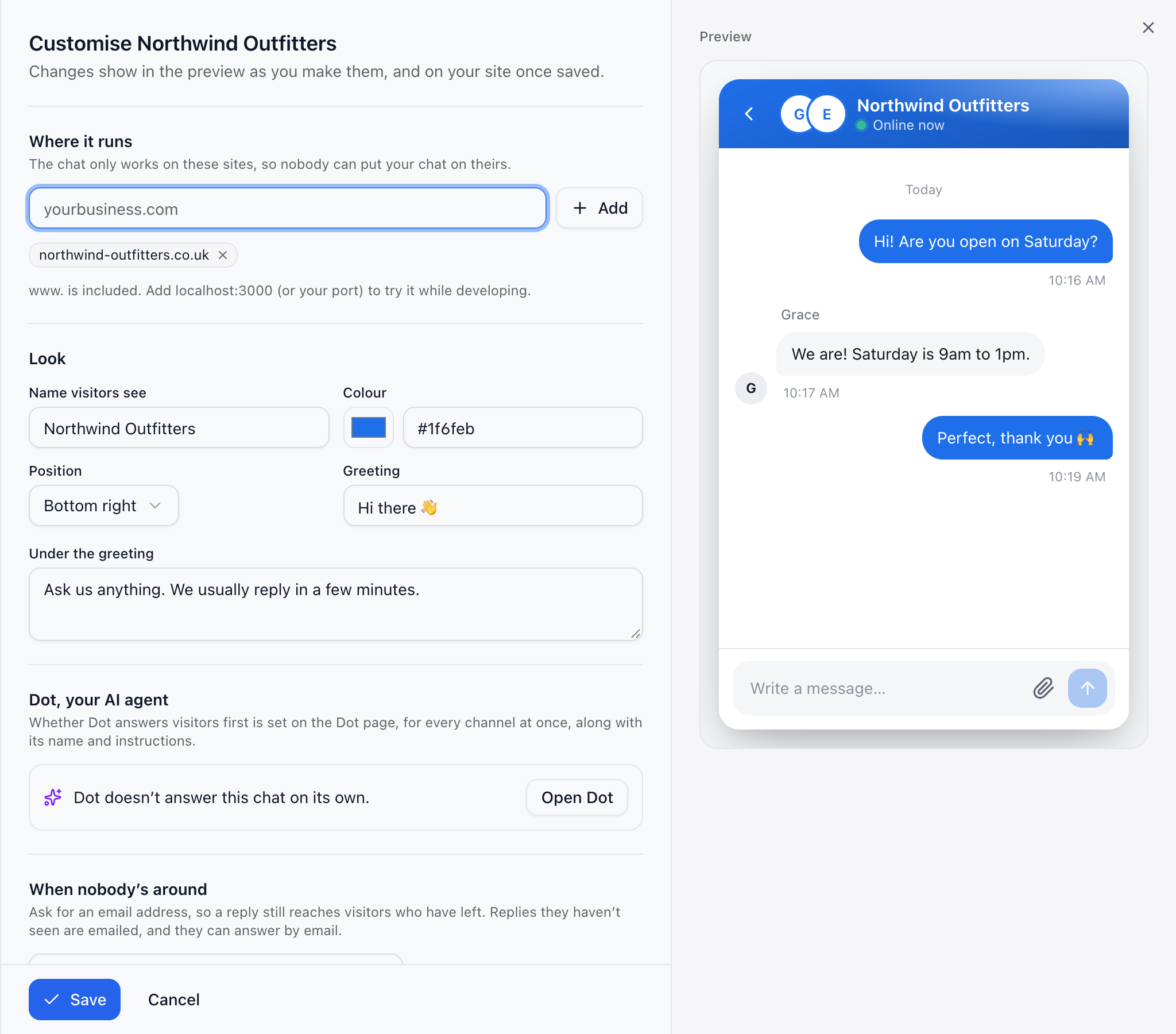
Where it runs
The chat only works on the sites you allow, so nobody can put your chat on theirs. Add each one under Where it runs, in Customise chat. Use *.yourbusiness.com to cover all its subdomains.
More you can set
When nobody’s around: ask for an email address, so your reply still reaches visitors who have left.
Before the chat starts: ask a few questions, such as name and email, before the first message.
Signed-in customers: if your site has accounts, your developer can tell the chat who’s signed in, so customers see their past chats on any device.
Whether Dot answers visitors first is set on the Dot page, for every channel at once.
Did this answer your question?