Your email inbox
Add an email inbox and you get an inbox address to forward your support mail to. Emails arrive next to your other conversations, and your replies go out from that address under your business’s name. Customers’ answers come back to the same conversation.
Add an inbox
Go to Channels and find Add an email inbox.
Enter the name replies are sent under and, if you like, your support address, such as support@example.com.
Select Add email inbox.
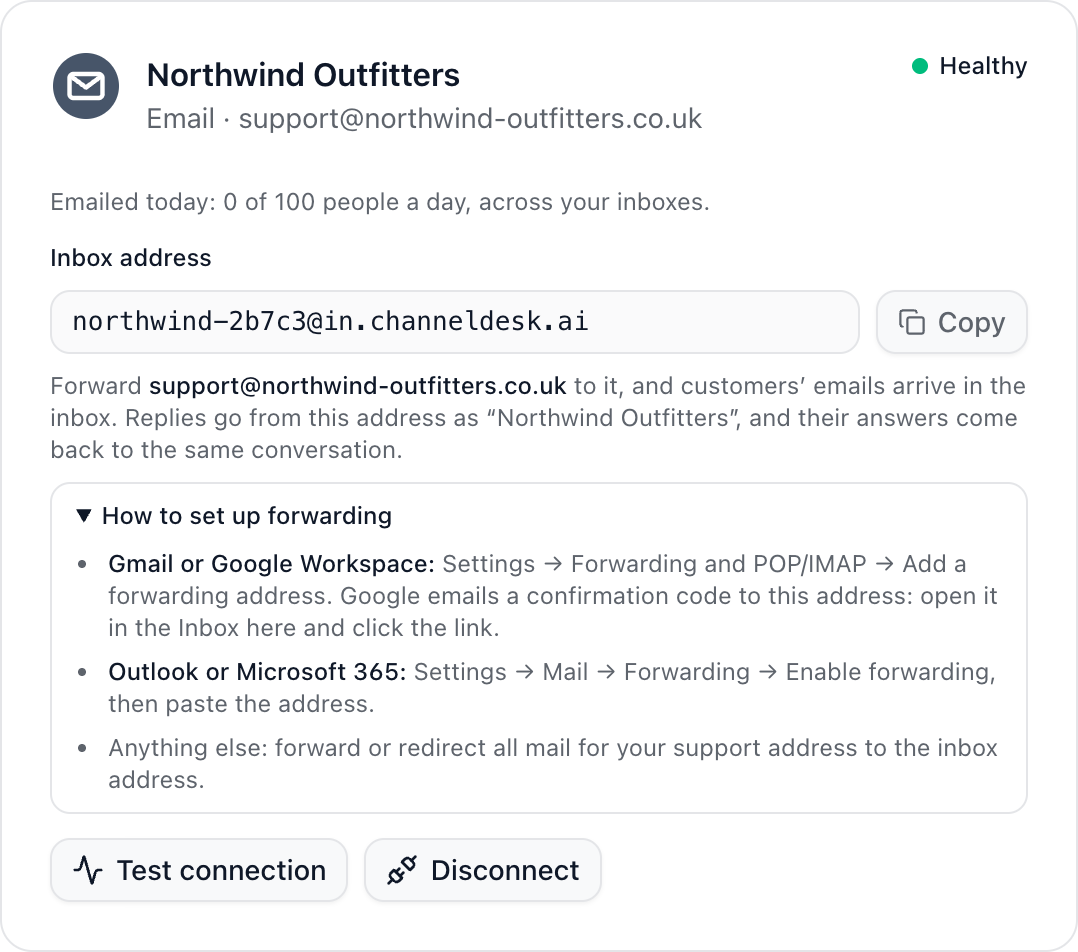
Copy the inbox address from its card, and forward your support address to it.
Gmail or Google Workspace: Settings → Forwarding and POP/IMAP → Add a forwarding address. Google emails a confirmation to the inbox address: open it in your ChannelDesk inbox and click the link.
Outlook or Microsoft 365: Settings → Mail → Forwarding → Enable forwarding, then paste the address.
Anything else: forward or redirect all mail for your support address to the inbox address.
Senders we can’t verify
We check each email is really from who it says. If we can’t, the conversation shows a warning and nothing answers it automatically: not Dot, workflows, ticket updates or rating emails. A teammate can still reply if it looks genuine.
People you can email a day
To keep email from ChannelDesk out of spam folders, each workspace can email a set number of people a day, across all its inboxes: 50 on Free, 500 on Pro, 2,000 on Growth and 5,000 on Scale, and at most 100 a day in your first week. Writing to the same person again that day doesn’t count twice. The count starts again at midnight UTC.
If too many of a day’s emails are refused for their address, automatic email pauses for 24 hours and owners are told. Your team’s own replies still go.
Did this answer your question?