Connect WhatsApp
Connect your WhatsApp number and its messages arrive in your inbox, where your team and Dot can answer them. You sign in with Facebook in Meta’s window, which opens over ChannelDesk, and we finish the setup for you. Only a workspace owner can connect channels.
Before you start
Already on the WhatsApp Business app? You can keep using it on the same number. See Keep using the WhatsApp Business app.
Using a new number? It can’t be in use on WhatsApp already, and you’ll get a code by text or call to confirm it.
Connect your number
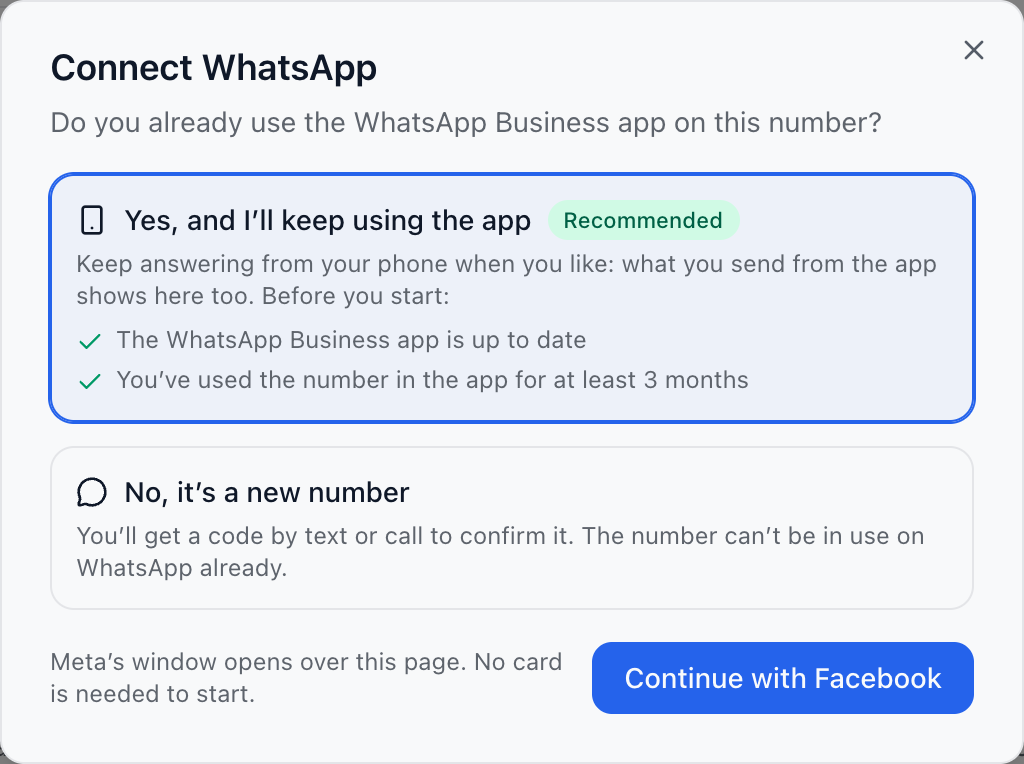
Go to Channels and select Connect WhatsApp.
Answer Do you already use the WhatsApp Business app on this number? with Yes, and I’ll keep using the app, or No, it’s a new number.
Select Continue with Facebook. In Meta’s window, sign in with Facebook, then confirm your business and your number. The window closes by itself when you’re done.
Wait a few seconds while we set up your number. When you see WhatsApp is ready, choose whether Dot answers there: Answer automatically, Suggest replies or Not yet.
Select Send a test message, send it from your own phone, and watch it arrive in your inbox.
Paying Meta
No card is needed to start. Meta charges your WhatsApp account directly, at its own prices; ChannelDesk adds nothing. The first 1,000 replies each month on each number are free. Templates, and replies past the free ones, need a card, which you add in WhatsApp Manager: https://business.facebook.com/wa/manage/home/
Your number’s page (Templates and settings, on its card in Channels) shows how many free replies you’ve used this month and whether a card is set up.
If setup doesn’t finish
Your number stays connected, and Try again carries on from the step that stopped. You don’t need to go through Meta’s window again.
Did this answer your question?