Invite your team
Everyone works from the same inbox, so nothing gets answered twice or not at all. Only an owner can invite people, change roles and add seats.
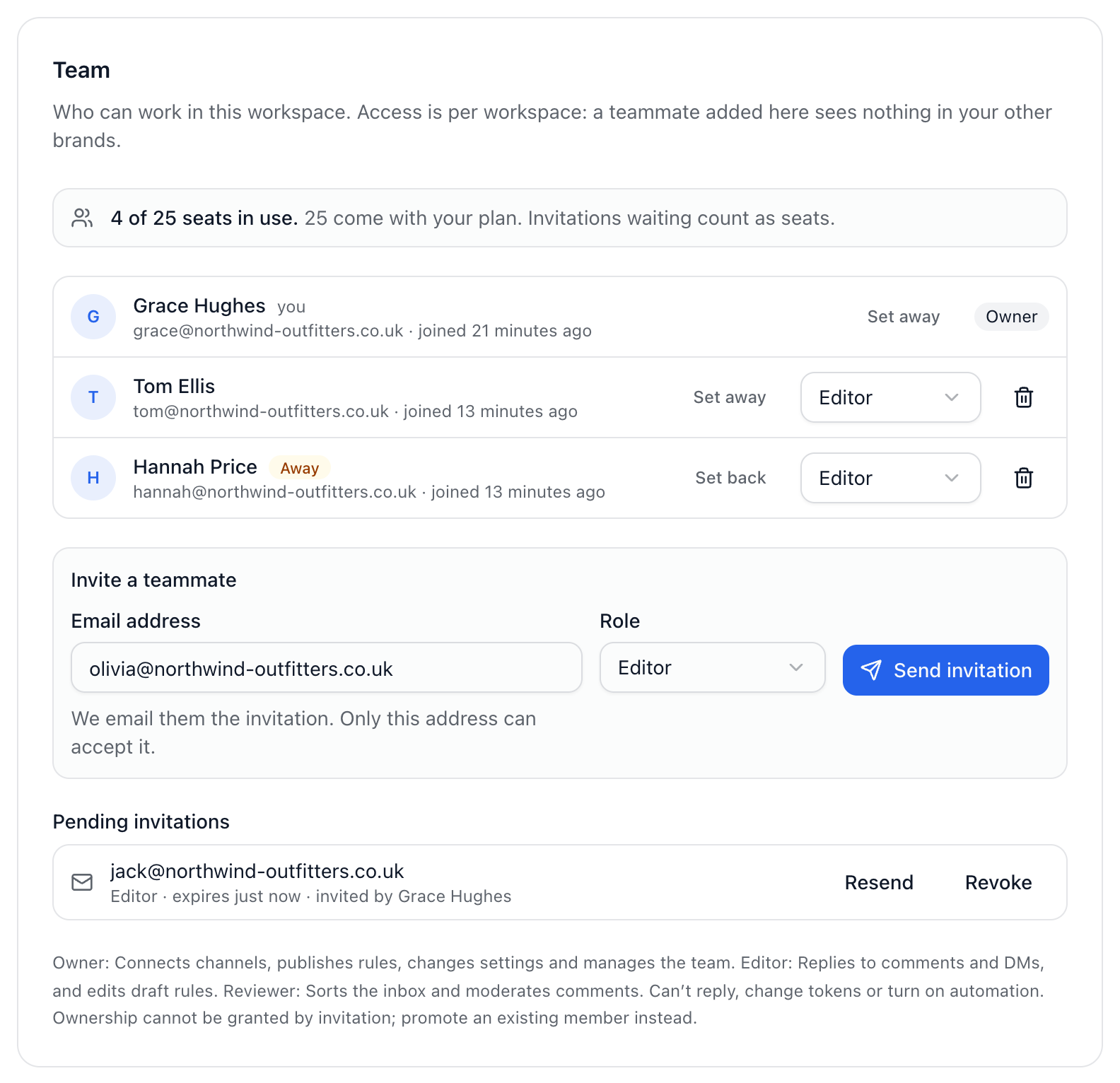
Invite a teammate
Go to Settings → Team.
Under Invite a teammate, enter their email address.
Choose a role: Editor or Reviewer.
Select Send invitation.
We email them a link that only that address can accept, and it expires in 7 days. If the email doesn’t arrive, copy the link shown after sending and share it yourself; it’s only shown once. Under Pending invitations you can Resend or Revoke an invitation.
Roles
Owner: connects channels, publishes rules, changes settings and manages the team and plan.
Editor: replies to customers on every channel and to comments, edits draft rules and workflows, and writes help articles.
Reviewer: sorts the inbox and moderates comments, but can’t reply or turn on automation.
Nobody is invited as an owner. Invite them as an Editor, then change their role to Owner in the list once they’ve joined.
Seats
Free has 1 seat, Pro 3, Growth 10 and Scale 25. Invitations still waiting count as seats. On a paid plan, an owner can add seats for $8 or £6 a month each, from the seats line at the top of the page (Change seats, or Add a seat when every seat is in use).
Did this answer your question?