Procedures: Dot follows your process
A procedure is a process Dot follows from start to finish, like a damaged item or moving a booking. It asks the right questions, looks things up and hands over when it should. When a conversation fits one, Dot follows it, and the inbox shows each step.
Write one
Open Dot and go to the Procedures tab, then press New procedure.
Choose Describe your process and Dot drafts the steps from how your team handles it. Or Start from scratch, or pick a template for your kind of business.
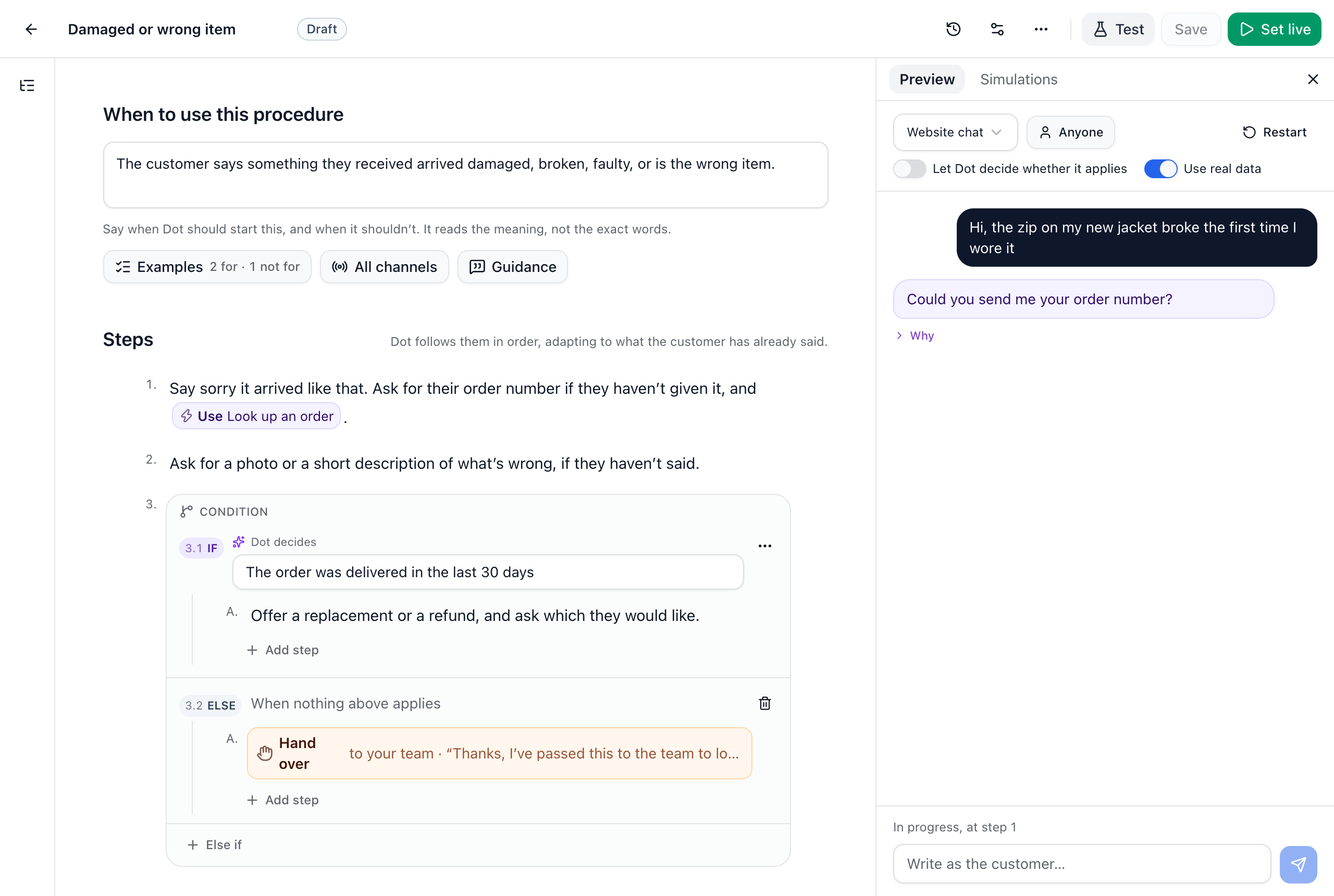
In When to use this procedure, describe the conversations it’s for. Use Examples to show Dot customer messages it’s for and not for, and choose its channels.
Write the steps the way you’d brief a new teammate. Dot follows them in order, adapting to what the customer has already said.
Press Save.
Type / on an empty step for a condition, a section, a hand over, the end, and more.
Type @ in a step to use one of your actions, like looking up an order.
A condition has IF, ELSE IF and ELSE branches. Each is decided one of three ways: Dot decides from the conversation, Rules are checked exactly, or a Formula works it out from values and results.
Test it
Press Test to open the test panel. Nothing there reaches customers.
Preview: talk to Dot as a customer, with your unsaved draft. Switch on Use real data to try lookups with a real person’s details.
Simulations: saved tests where an AI customer plays out a conversation and checks what Dot does. Press New, or Suggest tests for these steps, and run them again after each change.
Test runs come from a monthly allowance: 50 on Free, 500 on Pro, 2,000 on Growth and 5,000 on Scale.
Set it live
Press Set live, and add a note on what changed if you like. Each version that goes live is kept in Version history, where you can restore one as a draft. To stop Dot following it, choose Pause from the More menu; Resume brings it back. Editors can write and test procedures, and owners set them live.
Did this answer your question?