Actions: let Dot look things up and make changes
An action is one call Dot can make to a system you use. A lookup finds something, like an order’s status or a booking’s time. A change does something, like cancelling or moving a booking. Actions are on Pro and up.
Add an action
Open Dot and go to the Actions tab.
Press Connect an app to use an app’s own actions, such as Shopify’s. For a system of your own, press New action or start from a template.
Under What it does, choose Looks something up or Changes something, give it a name, and say plainly when Dot should use it.
Fill in The call. Or paste a curl example from your system’s API docs under Start from an example, and press Fill in from this.
Under What Dot needs to find out first, add each input and where it comes from: Ask the customer, or The customer’s verified email.
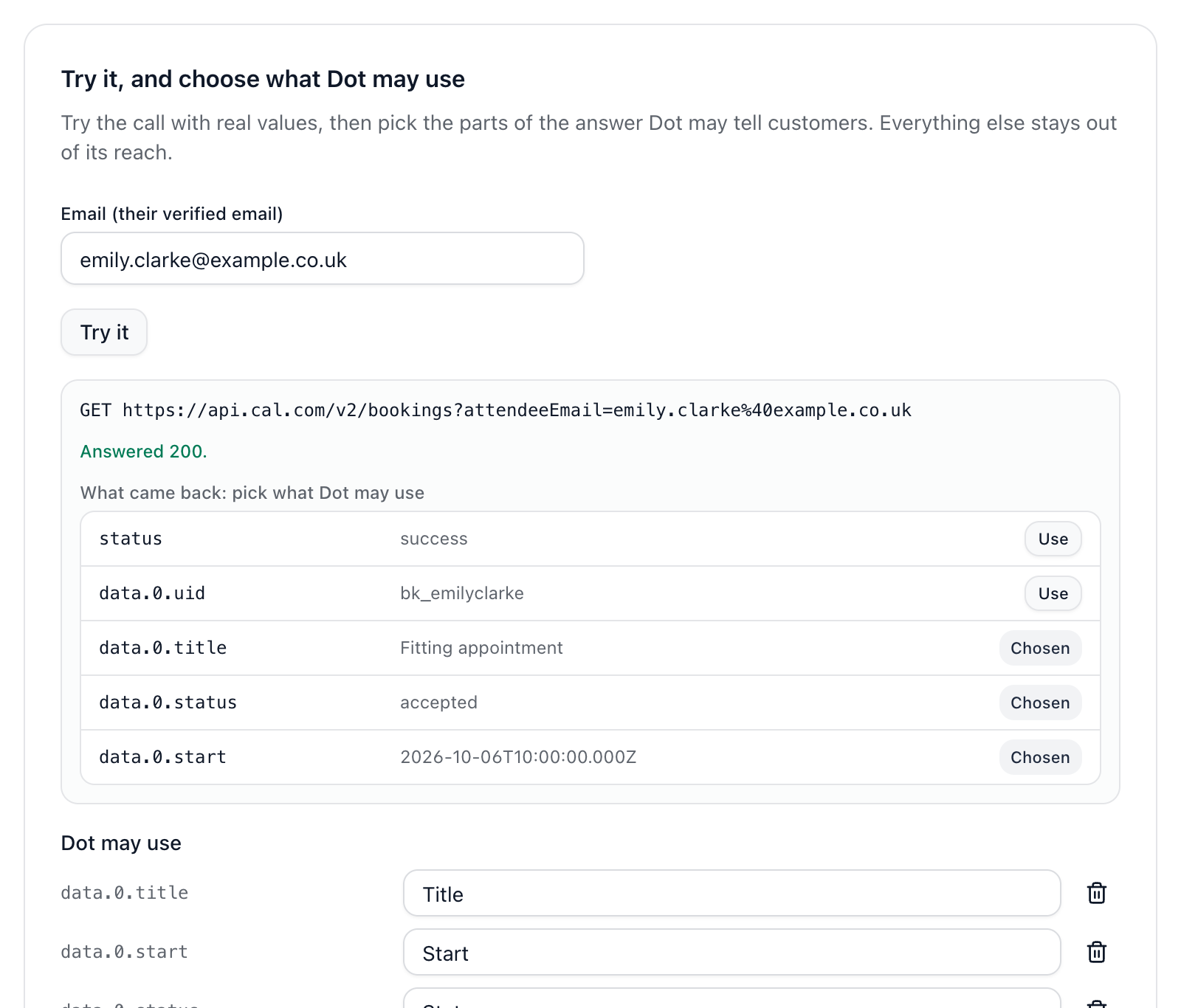
Press Try it with real values, and pick the parts of the answer Dot may use. Everything else stays out of its reach.
Switch on Dot can use this action, and Your team can run this action from a conversation if you’d like, then press Save action.
Verified customers
Switch on Only for verified customers for anything about a customer’s own record. A customer is verified when they’re signed in on your website chat, or when we could confirm their latest email really came from their address.
Before a change
What Dot asks first: the question it puts to the customer, like “I can cancel booking B-1042 for you. Shall I go ahead?” Nothing happens until they clearly say yes.
Changes only happen on channels set to Auto.
At most this many a day: past it, Dot hands the request to your team. It never makes the same change twice in one conversation in a day.
Wait before doing it: hold a change for up to an hour. Meanwhile the conversation shows what’s about to happen, and anyone on your team can press Stop.
If Dot can’t tell whether a change went through, it tells the customer so and your team checks. Only owners can try or change an action.
Did this answer your question?