Connect your apps
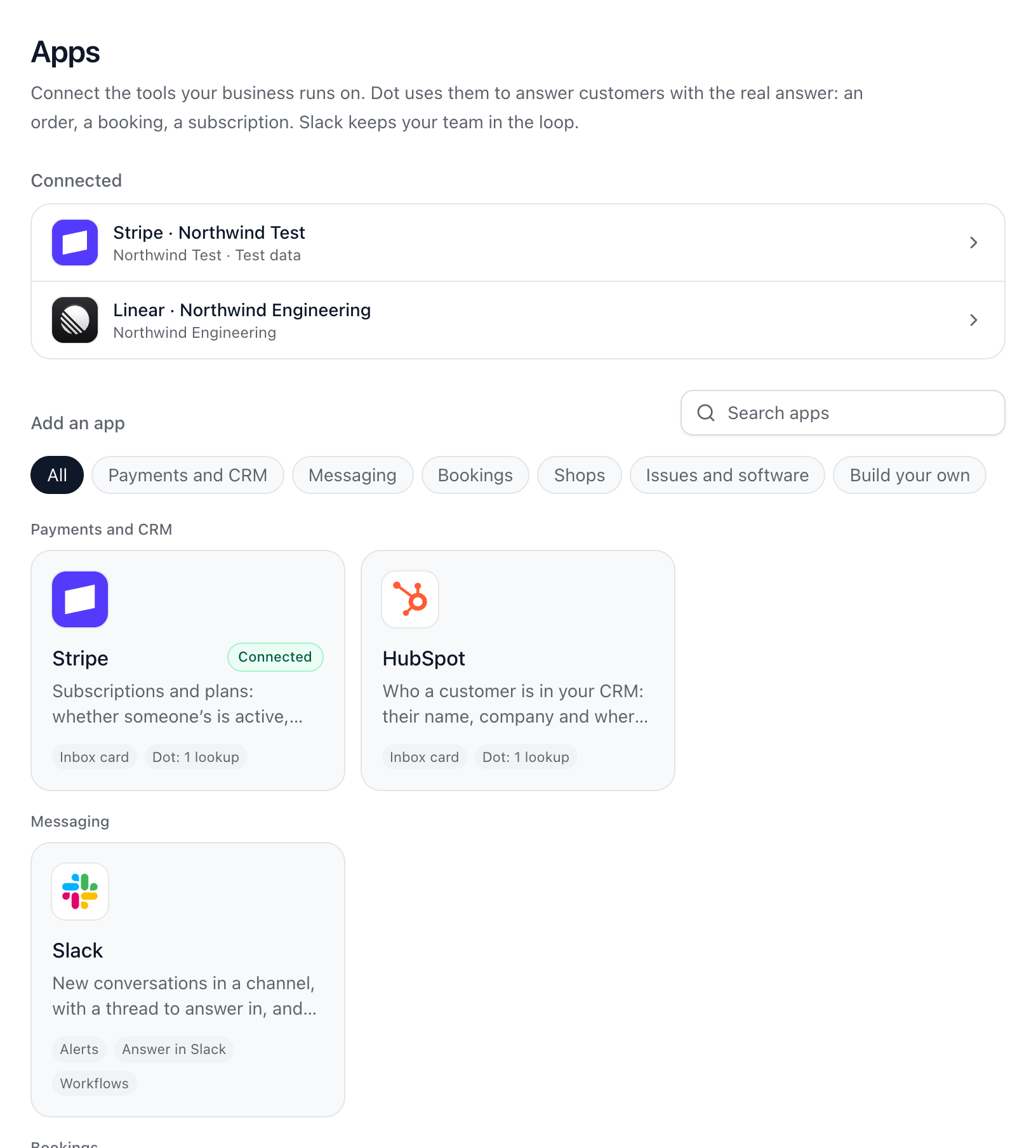
Apps are the tools your business already runs on. Once connected, Dot can answer with the real answer (an order, a booking, a subscription), your team sees the details beside a conversation, and Slack keeps everyone in the loop. Find them in Settings → Apps.
Apps you can connect
Slack, to hear about conversations and answer from Slack.
Stripe, HubSpot and WooCommerce.
Cal.com, Calendly and Acuity, for bookings.
Linear, Jira and GitHub Issues, for faults and requests.
Anything else, through an MCP server or your own system’s API, under Build your own.
Connect one
Go to Settings → Apps. Search for the app, or filter by kind, and choose it.
Follow the steps on the screen: sign in where the app offers it, or paste a key (the page says where to find one).
Choose which of its actions Dot may use. Lookups answer questions. Changes, like cancelling a booking, are only made once the customer has said yes.
Dot’s actions through apps, MCP servers and your own API are on Pro and up.
Slack
Connect Slack from Settings → Apps and choose a channel. Each conversation gets a thread there, with the customer’s messages, your team’s replies and Dot’s answers. Reply in the thread and it goes to the customer as you, as long as your Slack email is the one you sign in to ChannelDesk with. Slack also hears when a customer has waited past your reply target, and a workflow can Post to Slack on Pro and up.
Did this answer your question?