The API and webhooks
The API lets your own systems add and update customers, record what they do, read conversations and send messages. Webhooks tell your systems the moment something happens here. Only workspace owners can manage either, in Settings → Developers.
Create an API key
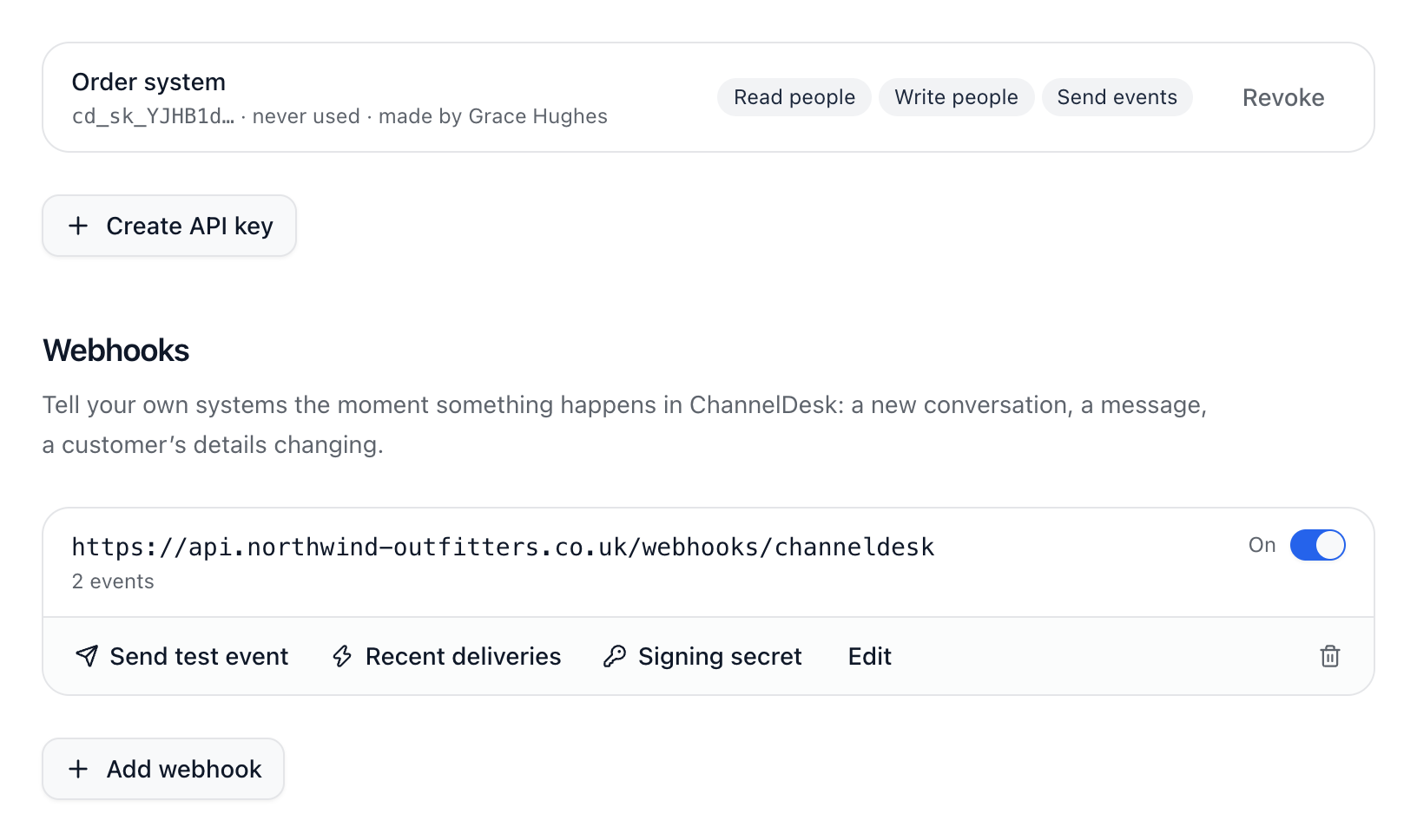
Go to Settings → Developers, and choose Create API key.
Name it after the system that will use it, and tick only what it needs under What it can do.
Copy the key straight away. It’s shown once; if you lose it, revoke it and create another.
Send the key in the Authorization header as Bearer followed by the key. The full API reference is at https://app.channeldesk.ai/v1/docs. Each key can make 600 requests a minute, and revoking one stops it working at once.
Events
Events are things your customers do, like placing an order or cancelling a subscription. Send them from your server with an API key, or from your website chat with ChannelDesk('track', name, properties). They show on the person and can start workflows. Settings → Developers lists each event with how often it was recorded this month.
Events a month: 10,000 on Free, 100,000 on Pro, 500,000 on Growth and 2,000,000 on Scale. Past that, events are still recorded but don’t start workflows until the month resets.
Add a webhook
In Settings → Developers, choose Add webhook.
Enter the Address of your server (it must start with https) and choose the events to send.
Copy the signing secret it shows you, then choose Send test event to try it.
Every request carries a ChannelDesk-Signature header: an HMAC-SHA256 of the timestamp and the body, signed with your secret, so you can check it came from ChannelDesk. Failed deliveries are tried again. If 50 in a row fail, the webhook is switched off and the owners are emailed.
Did this answer your question?