Write help articles with Dot
Dot drafts help articles from what your business already knows: your approved answers, your website and the questions customers ask most. Nothing goes live until someone on your team reads it and presses Publish.
Draft your first articles
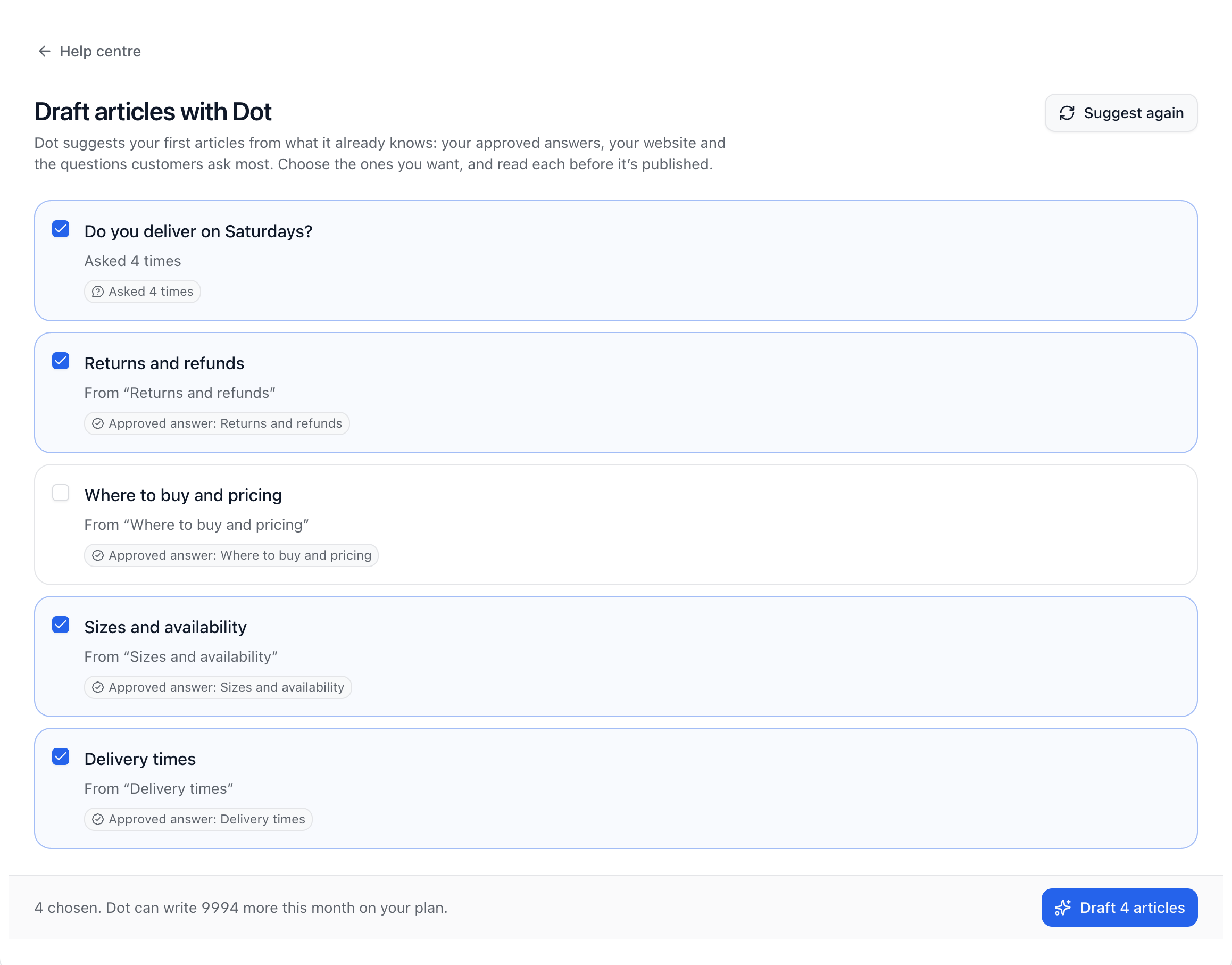
In Help centre, press Draft with Dot.
Dot suggests up to 10 articles, each showing what it’s based on, like how many customers asked or which approved answer it uses.
Tick the ones you want and press the Draft button at the foot of the page.
Dot writes them in the background. They wait for you under Needs review on the Articles tab.
You can also start a draft with Write it as a help article in Teach Dot, Turn into an article on a teammate’s reply in the inbox, Draft with Dot on a search in Insights, or from Dot suggests on the Articles tab.
Edit with Dot
Select part of an article, or nothing for the whole of it, and open the Dot menu in the editor’s toolbar:
Shorter: the same, in fewer words.
Clearer: plainer words, the answer first.
Friendlier: warmer, still brief.
More detail: from your approved answers and website.
Translate: into another language.
Dot’s version appears above the article with what changed. Press Use this to put it in, or Discard.
Checked before publishing
A customer’s email address or phone number stops an article being published.
Anything that disagrees with your approved answers or another article, and links that go nowhere, show under Before you publish. Fix them, or press Publish anyway if it’s right as it is.
Drafts and edits come from a monthly allowance of help articles and edits by Dot. It’s the same size as your plan’s AI replies but separate from them, so writing never leaves Dot short for customers. Plan and usage shows what’s left.
Did this answer your question?