Set up your help centre
Your help centre is a site of articles customers can search and read any time, at help.channeldesk.ai with your own address after it. It’s set up for you, named after your workspace, the first time an owner or editor opens Help centre.
Name, address and colour
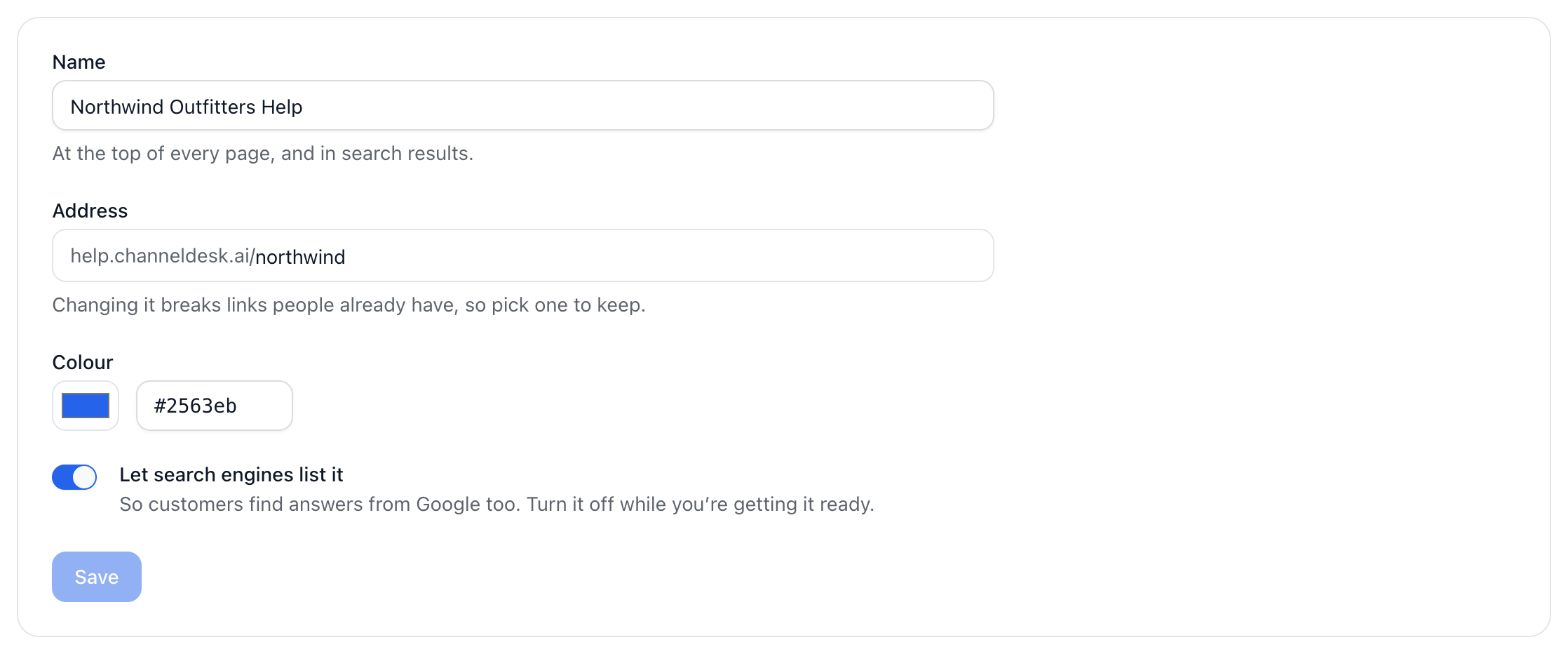
Open Help centre in the sidebar and go to the Settings tab.
Set the Name, shown at the top of every page and in search results.
Set the Address, the part after help.channeldesk.ai/. Pick one to keep: changing it breaks links people already have.
Choose a Colour.
Leave Let search engines list it on so people find your answers from Google, or turn it off while you get ready. Then press Save.
Collections
Collections are the topics on your help centre’s home page, like Orders and delivery or Bookings. On the Collections tab, press New collection, give it a name and a short description, and under Inside choose another collection to put it in, if you like. They go one level deep. Drag to put topics and their articles in the order customers see them.
Write and publish
Press New article, or Draft with Dot to have Dot write first drafts for you.
Write it. Type / for headings, lists, tips, pictures and more. Your words save as you type.
In the side panel, choose its Collection and Who can read it.
Press Publish. Later edits wait until you press Publish changes.
Everyone: on your help centre, once published.
Your team only: never on the public site, for how your team does things. Switch on Dot can answer from it if Dot may tell customers what it says; it never links to it.
Each publish is kept in Version history, in the article’s More menu, where Restore puts an older version’s words back in the draft. Unpublish takes an article off the site and keeps it to edit. Owners and editors write and publish; only owners change the name, address, colour and search listing.
Did this answer your question?