Hide spam with comment rules
Comment rules decide what happens to each new comment. When you connect your first Facebook Page or Instagram account, three rules are added as drafts. Nothing happens until one is published.
Customer complaints → review: sends complaints and refund requests to a person.
Promotional spam → hide when confidence is high: hides third-party promotion only when we’re confident it’s spam.
Customer questions → tag and suggest a reply: tags questions and drafts a reply for a person to approve. Nothing is posted.
Turn on the spam rule
Go to Automation → Comment rules.
Select Edit beside Promotional spam → hide when confidence is high.
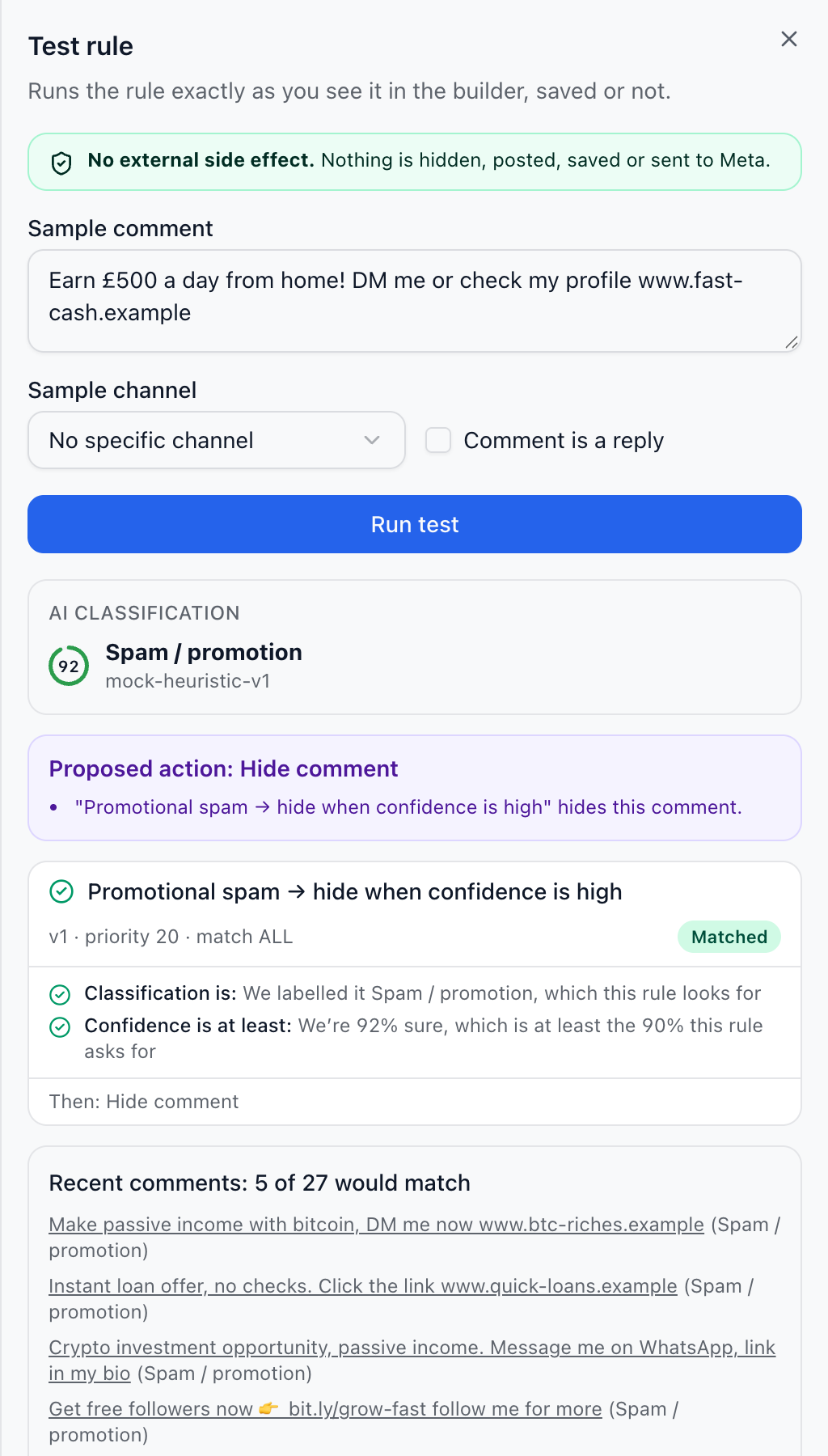
Select Test rule, paste a sample comment and select Run test. You also see how many recent comments would have matched.
Select Publish, then Publish rule.
What Free and paid plans do
On Free, rules flag but don’t act. Every rule still runs and reaches the same decision, and matching spam waits in Comments for you to hide in one click. On Pro, Growth and Scale, a published rule hides what it matches as soon as it arrives, without anyone clicking.
A hidden comment is kept from the public on the platform. The author and their friends can still see it, and you can unhide it at any time.
Good to know
Owners publish rules. Editors can change drafts, and reviewers can view and test them.
A rule that goes by our label never hides a comment we’re unsure of. It goes to a person instead.
Pause all automation, in Settings → Automation safety, stops everything at once, and every comment goes to review.
Rules never reply in public. A reply is only posted when a person selects Post reply.
Did this answer your question?